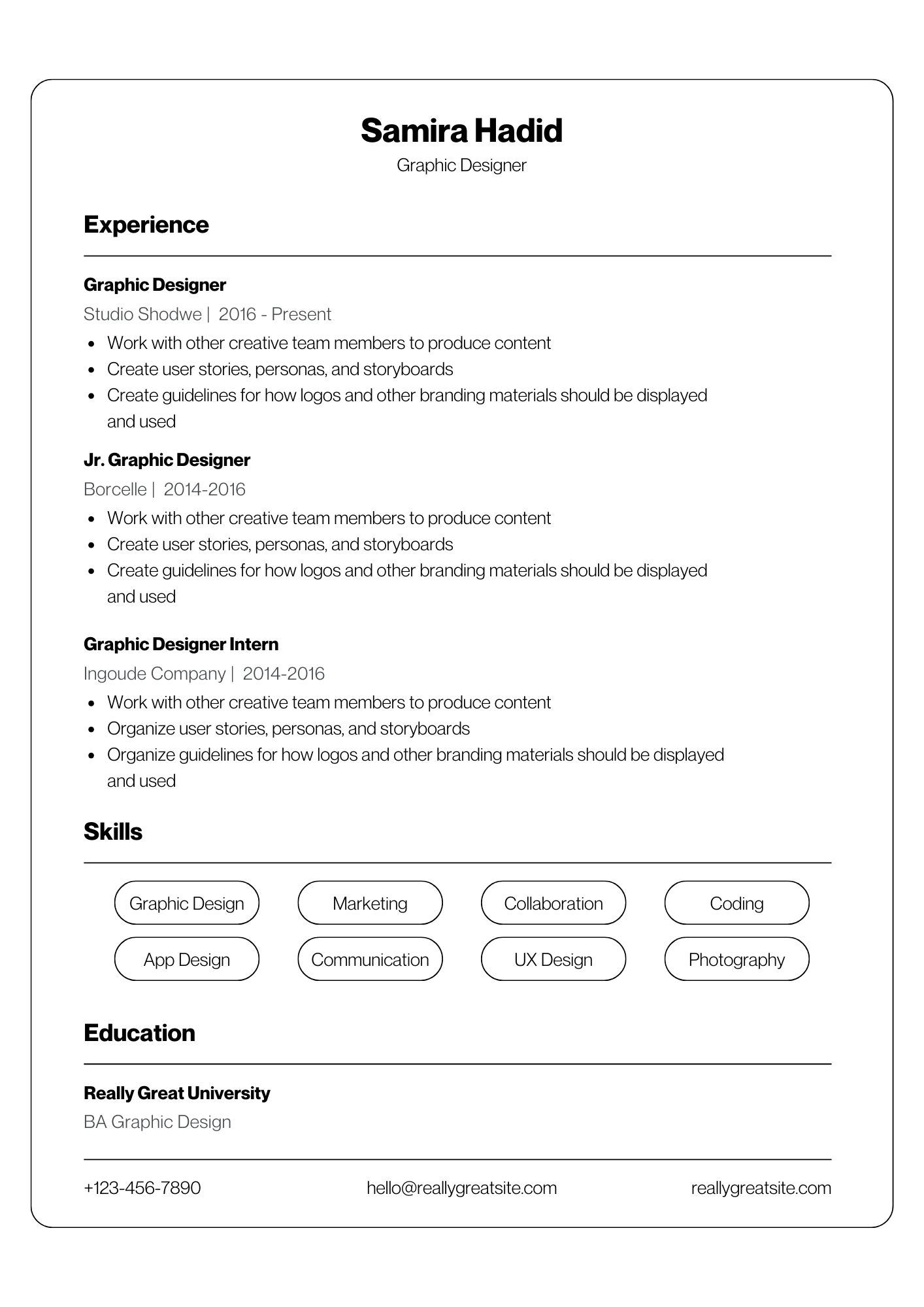
Modern Bordered resume template
A single-column resume inside a thin rounded frame, with a centred name and skills shown as outlined tags.
Access: Free to use and download. If you are not logged in, you are asked for an email address before the template opens. See plans.
| Layout | Single column |
|---|---|
| Photo area | No |
| Skills shown as | Tags / chips |
| Suits | Students and freshers, early career (0–3 years), mid-career |
| Suggested length | One page. The frame makes a second page look less tidy, so trim to fit. |
| Download format | PDF (image-based; text is not selectable) |
Who Modern Bordered suits
- Early-career applicants who want something cleaner than a word-processor default
- Creative and communication roles where a little styling helps but a photo is not wanted
- Internship and graduate-scheme applications
What works well
- Single column with plenty of white space — quick to scan on paper and on a phone screen.
- Skill tags make a short skills list look complete without rating bars or percentages.
- Contact details sit in a single line at the foot of the page, leaving the top for your name and role.
What to watch out for
- Contact details are at the bottom rather than the top. Some readers look for them first; make sure your name and job title at the top are clear enough to identify you.
- Tags work for short skill names ("SQL", "Figma"); long phrases wrap awkwardly. Keep each skill to one to three words.
How this layout reads
Everything is in one column, read top to bottom. This is the most predictable layout for any reader — a person skimming, a printer, or software that pulls text out of a file — and it continues onto a second page cleanly.
Suggested section order
- Contact details and a one-line target role
- A two- or three-line summary
- Education (with CGPA or percentage if it helps)
- Projects and internships
- Skills
- Certifications, achievements and activities
You can hide any section you do not need in the builder.
Tips for this template
- Three to four bullets per role is the sweet spot for this layout; more than that and the page loses its open look.
- Use the job title line under your name for the role you are applying for, not a list of three titles.
- Use the colour picker to change the accent colour; darker shades print more reliably.
When to choose a different template
- Choose Clean Professional if you have a long list of technical skills or several projects (Free).
- Choose Teal Modern if you need a sidebar for languages and references (Pro).
Before you start
- Write or paste your content into a separate document first — the builder does not save your entries if you close the tab.
- Open the template, fill in each section and check the live preview beside the form.
- Download the PDF. If you are uploading to a job portal that reads your file, also prepare a text-based version (see formatting a resume software can read).
Questions about this template
Is Modern Bordered free?
Free to use and download. If you are not logged in, you are asked for an email address before the template opens.
Does the downloaded PDF have selectable text?
No. The PDF download from our builder is image-based: it reproduces the design exactly, but the text cannot be selected or copied. That is fine for emailing a person or printing. For job portals that read the text out of your upload, keep a text-based copy of your resume as well, or type your details into the portal's form.
Is my resume saved if I close the page?
No. The builder works in your browser and does not save your entries to an account. Keep your text in a separate document and download the PDF before you close the tab.
Guides to read with this template
Similar templates
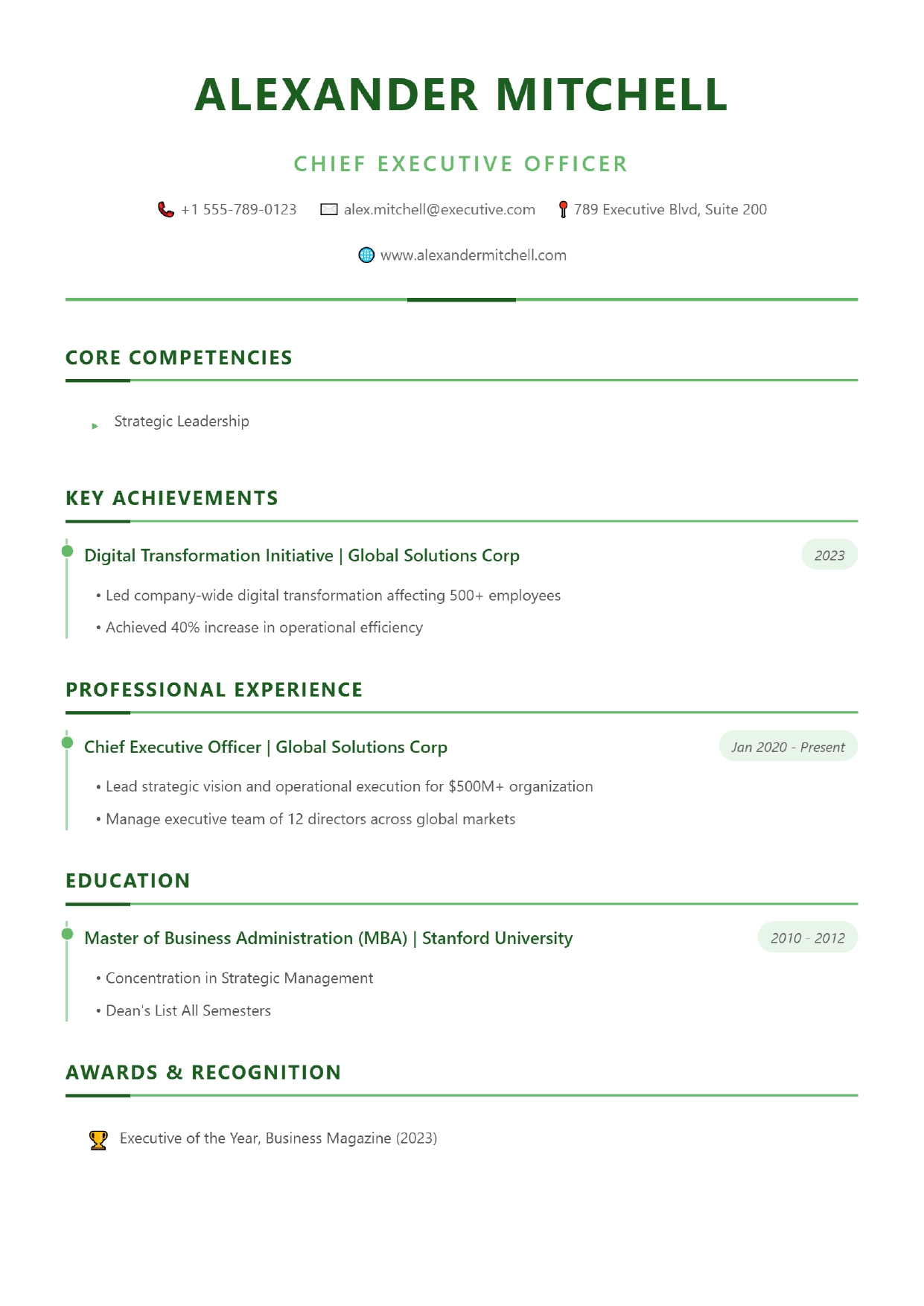 Emerald Executive
Ready to try Modern Bordered?
Free to use and download. If you are not logged in, you are asked for an email address before the template opens.
Open this template Back to all templates